1import{c,e as k}from"./chunk-BCE55JYA.js";import"./chunk-MYI3YS2M.js";import{C as x,Z as C,_ as T}from"./chunk-TU3JUKDL.js";import"./chunk-6JETGMQG.js";import"./chunk-VRQFSSVW.js";import"./chunk-RT33Z4W3.js";import"./chunk-CTTXKPH2.js";import{j as m}from"./chunk-B5NVKW3K.js";import{z as b}from"./chunk-MRC2PHN7.js";import{Cc as f,Dc as w,Ec as p,Fa as s,Fc as n,Gc as o,Jb as r,bc as l,cc as d,ld as a,md as v}from"./chunk-77LCFR2D.js";import"./chunk-6G35VSEK.js";var q=[{title:"Step #1: Event details",desc:[` 2 3 #### General settings 4 5 In this section you give your event platform its structure. 6 7 ***What does the event status mean?*** Your event is, by default, in draft mode, giving only admin users the ability 8 to view and access it. You will be able to send your event live one week before the start date, giving attendees 9 access to book sessions and meetings during your event times. 10 11 ***Details:*** Pressing \u2018edit\u2019 allows you to review and update the details you entered when creating your event. 12 13 ***Branding:*** This is where you upload company or organization logo and event branding. The page gives helpful 14 prompts on where the branding is used for your reference. Please pay special attention to any dimensions for an 15 optimized look and feel. 16 17 ***Menu selector:*** Think of all the functionalities you\u2019d like to offer at your event and enable them here. If 18 they are left disabled, they will not show in your event. The functions to choose from are: Attendee list, 19 Networking Polls, Speakers, and Sponsors. Listed at the top are the elements included in all events. 20 21 #### Tickets 22 23 This is where you create your tickets and attendee types: 24 25 ***Attendee types*** are how you define personalised user journeys. For example, you may wish to hide or show 26 certain event elements to different types of attendee. 27 28 Simply press \u2018create attendee type\u2019 to add different attendee groups. You can determine if you want a user to choose 29 their attendee type during registration, by ticking \u2018appear in registration\u2019. 30 31 ***Tickets*** are how you define registration paths. For example, you may wish some tickets to be free and others to 32 be paid for. 33 34 Simply press \u2018create ticket\u2019 to add a ticket. This is how attendees register and access your events. You can create 35 one or multiple tickets for each event. Once created, each ticket type generates a unique registration link. Once 36 you have created a ticket type, you can copy the link and share it with your attendees directly. 37 38 Note: All speakers need a ticket to enter the event. All admins (including you) are automatically registered. 39 40 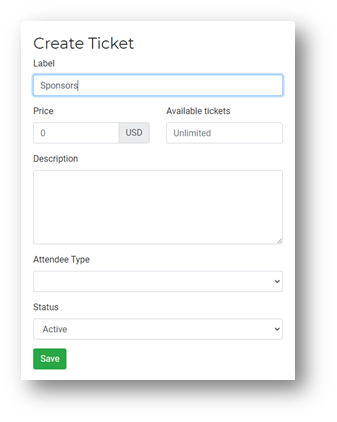 41 42 Label your ticket. 43 44 Enter the amount a delegate with this type of ticket is expected to pay (for free tickets, leave this as zero). 45 Remember, your Stripe account needs to be connected to select paid tickets (you can do this in the next step, 46 \u2018Registration\u2019). 47 48 If needed, add a description and any limitations to the number of people who can register with this ticket. For 49 example, you may want to limit VIP tickets to only 50 places. 50 51 Save. Repeat and add other tickets until you feel you have them all listed. You may only need one! 52 53 Use the share link icon to copy a link and send it to your guests directly. This will bring them to the event\u2019s 54 registration page with the right information displaying for them. 55 56 Wondering what your registration page looks like? Go to the next step to find out! 57 58 #### Registration 59 60 First impressions are very important. This section is how you customize your registration and login pages \u2013 the 61 first glimpse your delegates see of your event! Further information about the event will be displayed here, like 62 dates, cost, etc. 63 64 ***Registration email:*** This is the email attendees receive once their registration is complete. You can update 65 the text via the \u2018update body\u2019 button, and add a downloadable calendar invite via the \u2018add ics calendar file\u2019. Any 66 words {like this} will be personalised to your event and each registration. We would recommend keeping these to 67 ensure a personal touch. 68 69 ***Registration page:*** Builds the sections of your registration webpage. These three steps are what your attendees 70 see when registering. You can update text to personalise the registration process to your event. If you don\u2019t need 71 any of these things, don\u2019t worry, Canapii has included the minimum to make sure your webpage looks awesome with no 72 edits from you. 73
74 ***Payment:*** Canapii is integrated with Stripe to support you in managing registration ticketing and payment. Link 75 your Stripe details here, and all registration fees will be linked directly to your Stripe account. You can find the 76 required details on your [Stripe](https://dashboard.stripe.com/register) dashboard under \u2018Get your API keys\u2019. 77 78 *Registration admins:* Enter the emails of those you would like to receive email notifications when someone 79 registers for your event. This may be members of your workflow, your marketing team or even yourself! 80 81 ***Registration webhook:*** Canapii allows a Microsoft teams webhook, meaning you can receive real time 82 notifications to your teams account. 83 84 #### Admins 85 86 Invite teammates to help manage your event. These teammates will have admin access to your event console. Remember, 87 to access they first need to sign up and create a Canapii profile. If you would like to limit what they can see, 88 simply unclick the sections of the event console they should not have access to. For example, you may want the team 89 member managing ROI to see event analytics and nothing else. 90 91 Canapii allows you to have up to four additional organizers managing your event for free! Need access for further 92 team members? Get in touch with our team and we are happy to help. 93 94 #### FAQs 95 A default menu item in your event platform. Canapii has added some generic FAQs to help users navigate their event 96 experience. You can always add more by hitting the \u2018create\u2019 button and define the order in which they are displayed.`].join(` 97 98`)},{title:"Step #2: Set up your event",desc:[` 99 #### Sessions 100 101 Create on-demand, live and breakout sessions here. Once a session is created you can define session rules, activate, 102 and view analytics. This is where you define the interactive elements around your sessions too, like live Q&A. 103 Remember, only visible sessions will appear on your platform homepage. Use the playlist tab on the left-hand bar to 104 manage where and how sessions appear on your homepage once visible. 105 106 Clicking into a session is how you update the specific information for that session, including, but not limited to, 107 photo, status, privacy, and content type. Importantly, this is also where you assign a session to be your highlight 108 or secondary banner on the homepage e.g. your event platform premium real estate. 109 110 Canapii defines each content type as the following: 111 112 ***Live stream:*** Professional live broadcast using integrated streaming software such as AWS, YouTube, Vimeo. 113 114 ***Video on demand:*** Pre-recorded video available to access at any time. Upload files in the assets section. 115 116 ***Live breakout:*** Think webinars or workshops. Video conference sessions designed to allow two-way connect, with 117 speakers and participants on video and audio. 118 119 Scroll down to add speakers, upload attachments, and view ratings, reactions, and analytics specific to the session. 120 The interactive tab is where you define if you would like interaction between attendees in your session, and, if so, 121 the features needed there. By default, all sessions include an interactive bar. The Canapii interactive bar supports 122 live Q&A, comments, and tech support. 123 124 #### Playlist 125 126 Your playlist helps you build rows on your event homepage. Before you navigate this page you must create your 127 sessions under the \u2018Sessions\u2019 tab. 128 129 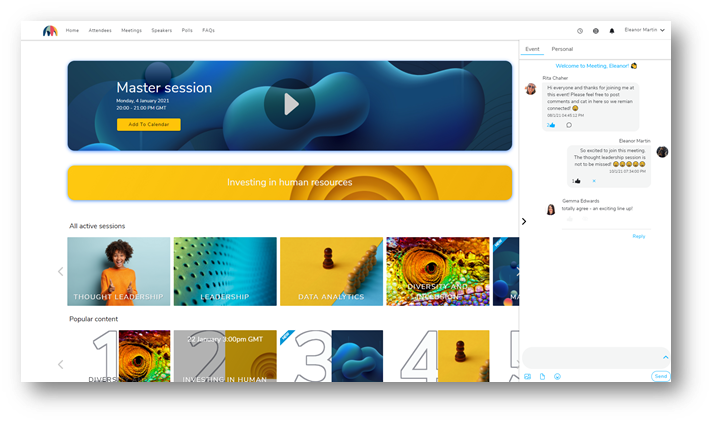 130 131 A default row called \u2018all active sessions\u2019 is already built; this includes any visible sessions created. However, 132 you can create new rows easily via the create button. 133 134 You can choose the design of your playlist rows \u2013 dynamic, blocks, or popular content. Our favourite is dynamic, but 135 don\u2019t just take our word for it! Have a play around yourself to determine which look works best for your event. 136 137 #### Meetings 138 139 A meeting is a scheduled video conference between two or more participants at your event. This meetings section 140 gives you an overview of all scheduled meetings and allows you to define your events meeting logic. Remember, for 141 quick meeting stats head to your event console homepage. 142 143 All scheduled meetings will appear in list format on this page, in the time zone of your event. Clicking into a 144 meeting shows the meeting details and participants, as well as its status. As admin, you can create meetings 145 directly from the console between any attendees. Remember, the meeting host starts the meeting so be sure to assign 146 the correct attendee here. 147 148 To define timeslots attendees can schedule meetings in, click on \u2018actions\u2019 followed by \u2018settings\u2019. To create a 149 timeslot hit the \u2018create\u2019 button, choose the slot length and save. Repeat this process for each timeslot. For 150 example, if you want attendees to have 30-minute meetings between 10am \u2013 11am you would create two slots, 10:00 \u2013 151 10:30 and 10:30 \u2013 11:00. Remember, if you do not add any time slots here, attendees will be unable to schedule 152 meetings at the event. 153 154 To encourage all attendees with pending meetings to accept their requests, you can force a notification to all 155 participants via the pending alerts under \u2018actions\u2019. 156 157 #### Attendees 158 159 All registered attendees automatically appear here. Clicking on an attendee profile allows you to update their 160 details. The export feature allows you to download your attendee list in excel format. 161 162 If needed, you can bypass the registration process and register a select number of attendees directly via the 163 \u2018create\u2019 button. We recommend this is used sparingly, as log in information (including password) will need to be 164 created by you and passed to the attendee. 165 166 An attendee\u2019s sessions and meeting engagements can be viewed in their profile. For example, should you need to 167 quickly understand if Enzo Hernandez attended the \u2018Opening Session\u2019, you could check in his profile. 168 169 #### Group chat 170 171 This section allows you to create and moderate group chats, as defined by admins. 172 173 You can create group chats for specific types of attendees to allow them to easily connect, and you to easily 174 communicate with them. Group chats can be filtered by attendee type, session, or sponsor to allow for easy audie
174nce
175    grouping. If you would like your message to be informational only you can tick \u2018set group chat as read only\u2019.
176
177    #### Polls
178
179    Create open text or multiple-choice polls and surveys here. Assigning a poll to a session dedicates it to that
180    session only. If you do not assign a poll to a session it will appear under the polls tab in the event platform, for
181    example if you want a survey question open to all your audience. Only active polls will be visible to attendees.
182
183    Grouped multiple-choice questions are designed specifically for the polls tab in the platform. This choice is ideal
184    for questions you would like to categorize. For example, group title could be \u2018Rate your experience of these
185    activities,\u2019 group subtitle could be \u2018love\u2019, \u2018like\u2019, \u2018did not enjoy\u2019 and question could be \u2018activity 1\u2019, \u2018activity
186    2\u2019 and so on.
187
188    #### Speakers
189
190    Create speaker profiles here. Speaker profiles can include a photo, bio and company URL. Active speakers will appear
191    in your event platform. You can assign speakers to specific sessions in the \u2018Sessions\u2019 section in the left-hand
192    menu.
193
194    Remember, this section is designed to showcase your speaker lineup, rather than register your speakers. Speakers
195    will still need to register for the event to access the platform via the usual ticketing process.
196
197    You can add a welcome message introducing speakers to your attendees via the settings tab.
198
199    #### Sponsors
200
201    Add your event sponsors and build their sponsor zones here. Once a sponsor is created, their zone is automatically
202    created too.
203
204    Populating a sponsor zone is simple. Assets are videos, and attachments are downloadable resources such as URL\u2019s,
205    podcasts, whitepapers. Any sessions from your event agenda can also appear in a zone, allowing attendees to easily
206    access all content relevant to that sponsor. For example, if Canapii is sponsoring your event and speaking at your
207    opening session, you could add the opening session to Canapii\u2019s sponsor zone.
208
209    Sponsor analytics show an in-depth overview of how attendees have engaged with a zone.
210
211`].join(`
212
213`)},{title:"Step #3: Run your event",desc:[`
214
215      You are all set! But you can check on step three at any point during your creative process to see how your event is
216      taking shape. Remember, if your event is in draft mode only you and other admins can see it. Ready to make your
217      event live? You can do this one week before your event start date in the general settings section.
218        `].join(`
219
220`)},{title:"Step #4: Post event",desc:[`
221    #### Analytics
222
223    Data, data, data. Canapii tracks what is relevant for event organizers to report on their engagement. All data is
224    live and updated in real time. You can view the data here or export if you need to share. If you need more granular
225    data on session engagement, or an individual attendee experience you can view this in the \u2018Attendees\u2019 and \u2018Sessions\u2019
226    sections.`].join(`
227
228`)},{title:"Canapii Knowledge Base",desc:[`
229     #### What is it?
230
231     A series of articles relating to the use of Canapii accounts and software (event management platform, virtual arena, mobile app, etc) designed to help users, whether organizers, attendees, or account holders. Articles may be related to the software UI, how to set up events, how to manage your account, best practice event tips, etc. They are written and maintained by Canapii/Canalys staff, not the users themselves.
232
233     #### What is needed?
234
235     The basic requirements are those offered by any simple content management system, which the digital team has successfully built many times before:
236
237     1.	A management interface that enables staff to create, edit and delete articles.
238     2.	A way for users to search articles and be delivered a meaningful result.
239     3.	Presentation interfaces that integrate well into the Canapii software, apps or websites (wherever the CKB is being offered).
240     4.	Synonym table
241
242     As with all Canapii digital developments, the KB should be multi-lingual, using machine translation, from day one.
243
244     In addition, there some optional requirements that could be considered, especially after the first release:
245     1.	User rating of articles and proactive analytics to guide management.
246     2.	Incorporating MI into the search process.
247
248     The following suggestions are aimed at getting something useful up and running quickly.
249
250     #### Article management
251
252     Articles need to be short, single-topic, readable, clear and up to date. A simple rich-text editing interface is useful for adding emphasis and clarity (eg, three heading levels, bold, bullets and not much else). Image insertion should be prevented (at least in ver
252sion 1) because the UIs will be in a constant state of flux and screengrabs will go out of date. You should also reduce the risk of inconsistent presentation by enforcing style sheets to control fonts, heading styles, etc.
253
254     In addition to an article body you will need an article title and automated record timestamping (created, last edited, last read by a user). Consider adding other attributes that will help inform future user searches and management decisions, such as: Total Number of User Reads in past 12 months, User Rating (upvotes vs downvotes \u2013 if implemented). To personalize this, we should also have an author (like the Canapii blog) with author defined as being the last Canapii staff member to have updated any particular post.  A database of authors should be stored somewhere to facilitate this and enable quick tagging.
255
256     Avoid using categories and tags as these can go out of date and are easy to get wrong. Similarly, remove any possibility of hyperlinking to other articles or to external pages. Rely on free-text searching the article title and article body. The only exception is if you have a single knowledge base being accessed in different contexts (rather than separate KBs for each) and you want to, for example, limit results to those relevant for organizers using the management platform, or those relevant for attendees in the arena. In such a setup you need to be able to tag an article with one or more context tags to limit the search range.
257
258     You could also attach to each article one or more questions that the article addresses. The content of these questions can be used as higher-relevance text to inform search results as well as to provide the basis for presenting an FAQ proactively.
259
260     #### Searching and presentation
261     To start with, a basic inverted index should suffice (building a case-neutral index from all words contained in the KB, along with a count of how many times a word appears in each article to inform relevance, stripping out valueless words, eg, of, an, the, its, I, etc). The user enters the text of what they are trying to find and good candidate article titles are presented in relevance order for clickthrough. You could add extra relevance weight to words that feature in article titles, and there are other techniques that can be employed to refine the delivery of results, such as factoring in user ratings, number of user reads, etc.
262
263     Depending on the UI and context, you may also wish to promote new articles (based on Created or Edited dates - more useful later in the evolution when a core of articles already exists, and updates are more likely to address significant changes) or provide an FAQ (perhaps based on read frequency) separate from a user search.
264
265     #### Searching and Presentation
266
267     Canapii also needs a synonym table, to define such terms as sponsor, attendee, console and to map them to other possible similar terms (perhaps those used by our competitors) etc.  This list is already in development by the marketing team and can be ready as soon as it is needed.
268
269     The free text entry for creating articles should recognize and suggest these synonyms as the user is typing, to ensure consistency. This would work similarly to how Twitter predicts @handles and #hashtags.
270
271     The synonym table can then be referenced by the search algorithm (whether basic or MI). For example, someone asks \u2018How do participants ask questions?\u2019 and synonyms map elements of this to \u2018attendees\u2019 and \u2018Q&A\u2019 to help deliver articles that may not include the exact question text.
272
273     ### Optional Extras
274
275     #### Language
276
277     The CKB must be machine translated into all 71 languages that are supported. A user search should default to the language that they have set Canapii into.
278
279     #### User rating and analytics
280
281     How do you know if the CKB is working well? The number of user views of an article only tells part of the story (eg, how often the article is being delivered/read). Providing users with a simple \u2018Was this helpful?\u2019 upvote/downvote click provides more information as it relates the delivery of the article to the text searched for. This can be valuable, if you then do something with it, for example use it mechanically to increase relevance scores or study the outcomes in the management interface to see what is working and what is not and refine both the articles and the search/relevance algorithms accordingly. The user rating is not for display to other users.
282
283     #### MI
284     Rather than use basic text matching to search you could try to train the system with search phrases and pre-match them to the \u2018correct\u2019 articles (as in Fero). This could be constructed as an extension of the attached questions/FAQ idea mentioned earlier, though you would not want every question variant to display in an FAQ.
285
286     `].join(`
287
288`)}],A=q;var R=(e,u)=>u.title;function F(e,u){if(e&1&&(n(0,"cnp-accordion-item",5)(1,"div",6),a(2),o()()),e&2){let i=u.$implicit;p("heading",i.title),r(2),v(i.desc)}}var h=(()=>{class e{constructor(){this.sections=A}static{this.\u0275fac=function(t){return new(t||e)}}static{this.\u0275cmp=l({type:e,selectors:[["app-help"]],decls:10,vars:1,consts:[[1,"account-help"],["heading","Need help?"],["cnpPageHeaderDescription",""],["href","mailto:[email protected]"],[3,"headingLevel"],[3,"heading"],["markdown","",1,"cnp-prose"]],template:function(t,y){t&1&&(n(0,"div",0)(1,"cnp-page-header",1)(2,"p",2),a(3," Quick answers to the most common Canapii questions. Can't find what you're looking for? Email "),n(4,"a",3),a(5,"[email protected]"),o(),a(6," and we'll be happy to help. "),o()(),n(7,"cnp-accordion",4),f(8,F,3,2,"cnp-accordion-item",5,R),o()()),t&2&&(r(7),p("headingLevel",2),r(),w(y.sections))},dependencies:[T,C,x,c],styles:[".account-help[_ngcontent-%COMP%]{display:flex;flex-direction:column;gap:var(--cnp-space-card-gap);padding:var(--cnp-space-page-gutter-y) var(--cnp-space-page-gutter-x)}"],changeDetection:0})}}return e})();var M=[{path:"",component:h,title:"Need help? | Canapii"}],S=(()=>{class e{static{this.\u0275fac=function(t){return new(t||e)}}static{this.\u0275mod=d({type:e})}static{this.\u0275inj=s({imports:[m.forChild(M),m]})}}return e})();var I=(()=>{class e{constructor(){}ngOnInit(){}static{this.\u0275fac=function(t){return new(t||e)}}static{this.\u0275cmp=l({type:e,selectors:[["app-knowledge-base"]],decls:8,vars:0,consts:[["markdown",""],[1,"mb-3"]],template:function(t,y){t&1&&(n(0,"div",0),a(1,`
289  `),n(2,"h1",1),a(3,"Canapii Knowledge Base (CKB)"),o(),a(4,`
290
291  #### What is it? A series of articles relating to the use of Canapii accounts and s
291oftware (event management platform,
292  virtual arena, mobile app, etc) designed to help users, whether organizers, attendees, or account holders. Articles
293  may be related to the software UI, how to set up events, how to manage your account, best practice event tips, etc.
294  They are written and maintained by Canapii/Canalys staff, not the users themselves. #### What is needed? The basic
295  requirements are those offered by any simple content management system, which the digital team has successfully built
296  many times before: 1. A management interface that enables staff to create, edit and delete articles. 2. A way for
297  users to search articles and be delivered a meaningful result. 3. Presentation interfaces that integrate well into the
298  Canapii software, apps or websites (wherever the CKB is being offered). 4. Synonym table As with all Canapii digital
299  developments, the KB should be multi-lingual, using machine translation, from day one. In addition, there some
300  optional requirements that could be considered, especially after the first release: 1. User rating of articles and
301  proactive analytics to guide management. 2. Incorporating MI into the search process. The following suggestions are
302  aimed at getting something useful up and running quickly. #### Article management Articles need to be short,
303  single-topic, readable, clear and up to date. A simple rich-text editing interface is useful for adding emphasis and
304  clarity (eg, three heading levels, bold, bullets and not much else). Image insertion should be prevented (at least in
305  version 1) because the UIs will be in a constant state of flux and screengrabs will go out of date. You should also
306  reduce the risk of inconsistent presentation by enforcing style sheets to control fonts, heading styles, etc. In
307  addition to an article body you will need an article title and automated record timestamping (Created, last edited,
308  last read by a user). Consider adding other attributes that will help inform future user searches and management
309  decisions, such as: Total Number of User Reads in past 12 months, User Rating (upvotes vs downvotes \u2013 if implemented).
310  To personalize this, we should also have an author (like the Canapii blog) with author defined as being the last
311  Canapii staff member to have updated any particular post. A database of authors should be stored somewhere to
312  facilitate this and enable quick tagging. Avoid using categories and tags as these can go out of date and are easy to
313  get wrong. Similarly, remove any possibility of hyperlinking to other articles or to external pages. Rely on free-text
314  searching the article title and article body. The only exception is if you have a single knowledge base being accessed
315  in different contexts (rather than separate KBs for each) and you want to, for example, limit results to those
316  relevant for organizers using the management platform, or those relevant for attendees in the arena. In such a setup
317  you need to be able to tag an article with one or more context tags to limit the search range. You could also attach
318  to each article one or more questions that the article addresses. The content of these questions can be used as
319  higher-relevance text to inform search results as well as to provide the basis for presenting an FAQ proactively. ####
320  Searching and Presentation To start with, a basic inverted index should suffice (building a case-neutral index from
321  all words contained in the KB, along with a count of how many times a word appears in each article to inform
322  relevance, stripping out valueless words, eg, of, an, the, its, I, etc). The user enters the text of what they are
323  trying to find and good candidate article titles are presented in relevance order for clickthrough. You could add
324  extra relevance weight to words that feature in article titles, and there are other techniques that can be employed to
325  refine the delivery of results, such as factoring in user ratings, number of user reads, etc. Depending on the UI and
326  context, you may also wish to promote new articles (based on created or edited dates - more useful later in the
327  evolution when a core of articles already exists, and updates are more likely to address significant changes) or
328  provide an FAQ (perhaps based on read frequency) separate from a user search. #### Searching and Presentation Canapii
329  also needs a synonym table, to define such terms as sponsor, attendee, console and to map them to other possible
330  similar terms (perhaps those used by our competitors) etc. This list is already in development by the marketing team
331  and can be ready as soon as it is needed. The free text entry for creating articles should recognize and suggest these
332  synonyms as the user is typing, to ensure consistency. This would work similarly to how Twitter predicts @handles
333  and #hashtags. The synonym table can then be referenced by the search algorithm (whether basic or MI). For example,
334  someone asks \u2018How do participants ask questions?\u2019 and synonyms map elements of this to \u2018attendees\u2019 and \u2018Q&A\u2019 to help
335  deliver articles that may not include the exact question text.
336
337  `),n(5,"h1",1),a(6,"Optional extras"),o(),a(7,`
338
339  #### Language The CKB must be machine translated into all 71 languages that are supported. A user search should
340  default to the language that they have set Canapii into. #### User rating and analytics How do you know if the CKB is
341  working well? The number of user views of an article only tells part of the story (eg, how often the article is being
342  delivered/read). Providing users with a simple \u2018Was this helpful?\u2019 upvote/downvote click provides more information as
343  it relates the delivery of the article to the text searched for. This can be valuable, if you then do something with
344  it, for example use it mechanically to increase relevance scores or study the outcomes in the management interface to
345  see what is working and what is not and refine both the articles and the search/relevance algorithms accordingly. The
346  user rating is not for display to other users. #### MI Rather than use basic text matching to search you could try to
347  train the system with search phrases and pre-match them to the \u2018correct\u2019 articles (as in Fero). This could be
348  constructed as an extension of the attached questions/FAQ idea mentioned earlier, though you would not want every
349  question variant to display in an FAQ.
350`),o())},dependencies:[c],encapsulation:2})}}return e})();var G=(()=>{class e{static{this.\u0275fac=function(t){return new(t||e)}}static{this.\u0275mod=d({type:e})}static{this.\u0275inj=s({imports:[b,S,k.forChild(),h,I]})}}return e})();export{G as HelpModule};
Line numbers count LF bytes from the start of the resource, as the search results do. Vendor segments are library code the classifier recognised; they are stored but not indexed. Bytes are shown as Latin1 characters, one per byte.